Managing market data
Use the Data page to download, import, inspect and keep fresh the market data every backtest, gauntlet run and paper trade reads — Set up data presets, the Get data wizard, the Health, Catalog, Coverage, Jobs, Storage and Log tabs, freshness tiers, and safe deletes.
Backtests, the gauntlet and paper trading all read market data stored on your machine. The Data page (/data) is where you get that data, check that it is complete and current, and see what it costs on disk. A fresh install has almost none, so this is the first page to visit.
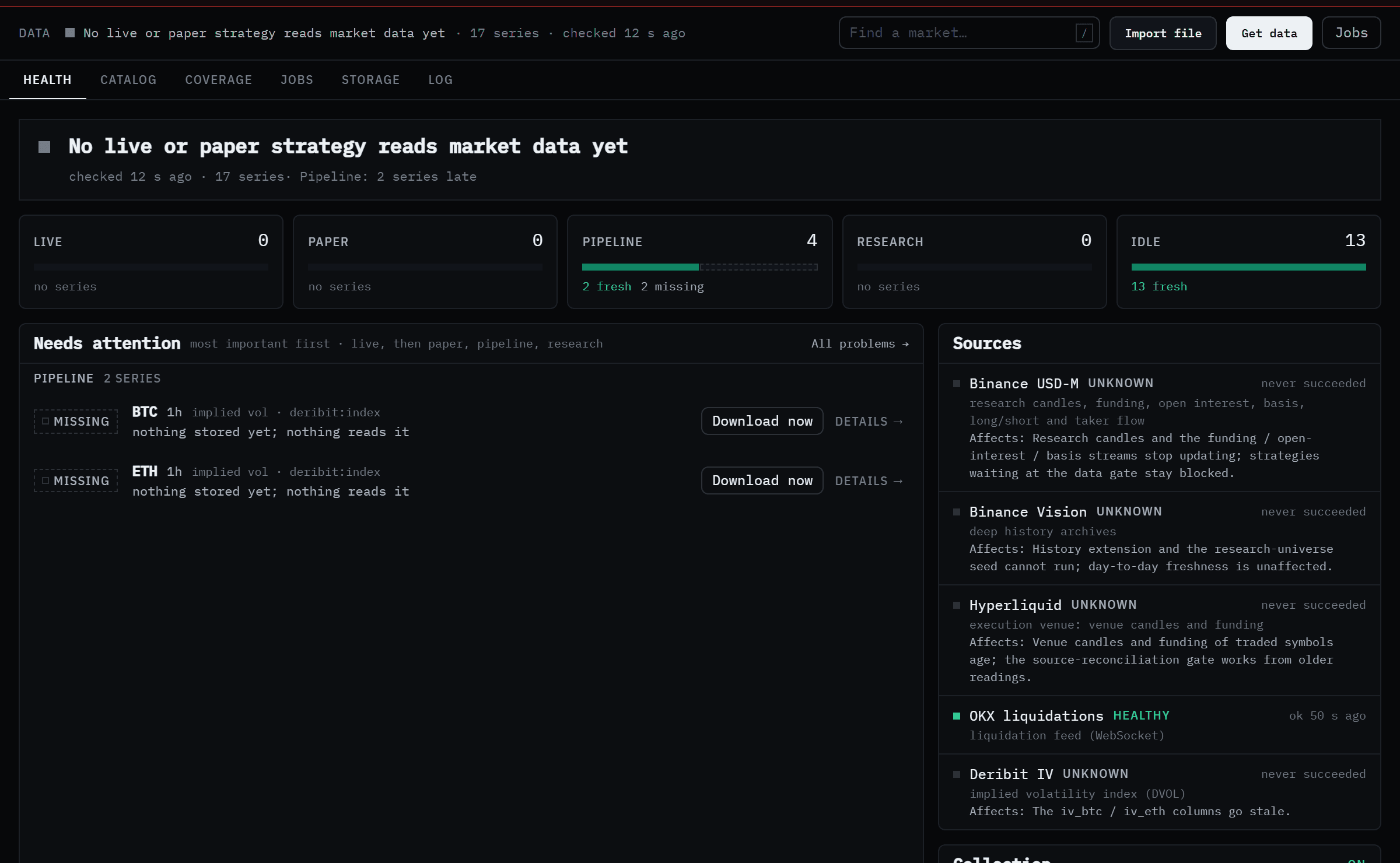 Health answers one question: is the data your strategies trade on current?
New here?
Get your first market data downloads BTC, ETH and SOL history in a few minutes, step by step.
The page at a glance
The header is the same on every Data tab:
- A status line with the overall verdict, how many series are stored and when they were last checked.
- A search box for any market. Press / to jump to it.
- Import file, Get data, and a jobs indicator (Jobs, or for example 2 running · 7 queued). Click the indicator for a drawer with live progress.
| Tab | What it shows |
|---|---|
| Health | The verdict, a card per freshness tier, what needs attention, and the state of each data source and the collector. |
| Catalog | Every stored series, with filters, saved views and bulk actions. |
| Coverage | A grid of symbols × timeframes for each stream, coloured by freshness or history depth. |
| Jobs | Every download, history extension, import, repair and collection run, with progress. |
| Storage | Disk use, reclaimable space, the trash, and an identity audit. |
| Log | Your actions and incidents, plus automatic work, exportable as CSV. |
Set up data, Get data and Import are pages you reach from buttons, not tabs.
Get your first data: Set up data
On an empty install the Health tab says Your data lake is empty and offers Set up data →. The page has three presets:
| Preset | What it downloads |
|---|---|
| Starter | BTC, ETH and SOL perpetuals: 1h, 4h and 1d candles, all history, plus funding and open interest. Enough for every walkthrough. |
| Research | The top 25 perps at 1h, 4h and 1d, the top 10 also at 15m and 5m, plus funding and open interest. |
| Pro | The top 50 perps at 1h, 4h and 1d, the top 20 also at 15m and 5m and the top 10 at 1m, plus funding, open interest and basis. Large: check the estimate. |
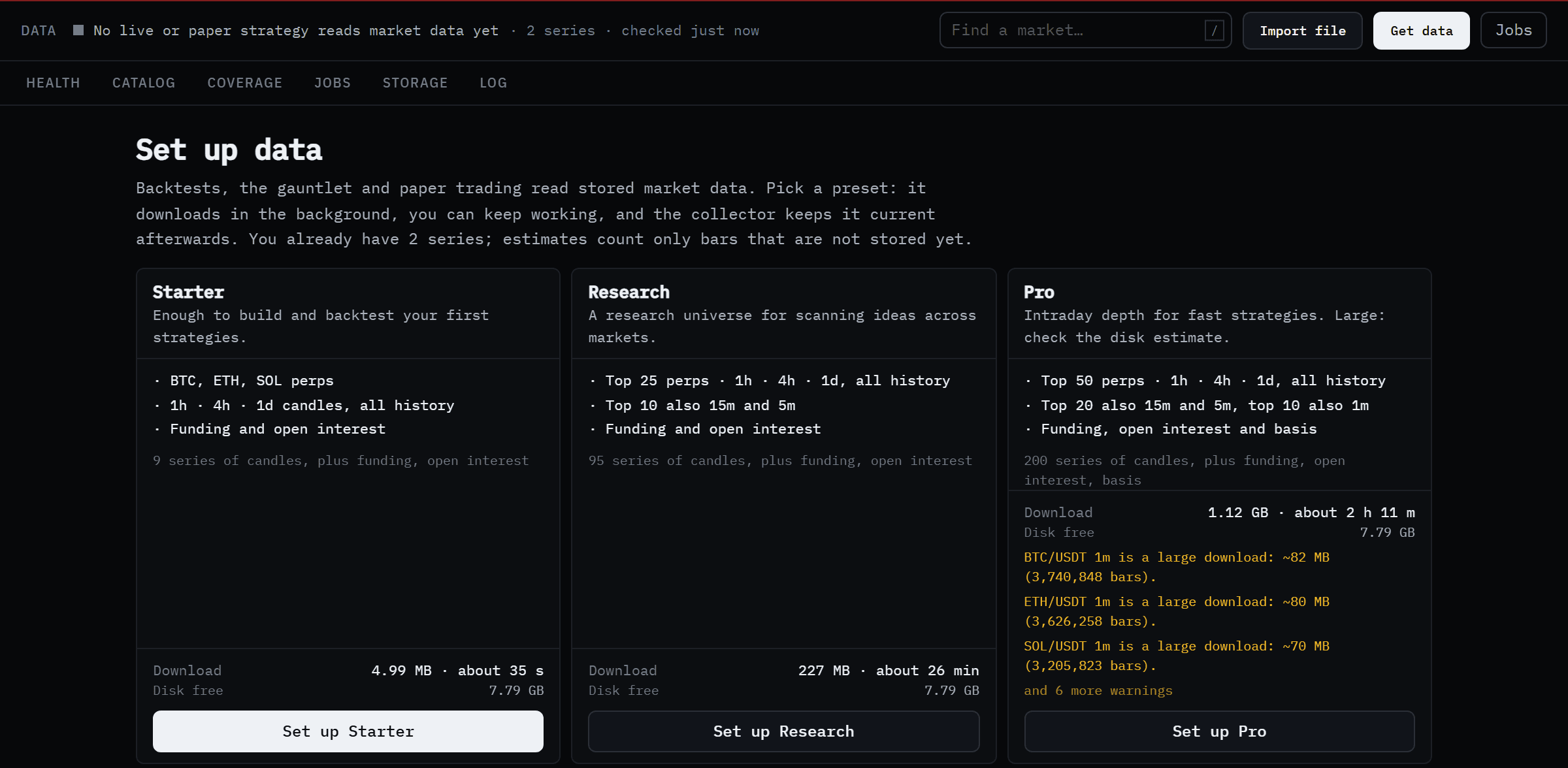 Estimates count only bars you don't already have.
Each card shows the server's own estimate of download size, time and your free disk. Click Set up Starter (or another preset): Forven queues one download job per series and you can keep working. On a home connection the Starter preset is about 5 MB and takes a few minutes. History goes back to 2019 for BTC and ETH and 2020 for SOL.
Get data: exactly the markets you want
Get data is a three-step wizard: What → Choose → Review. Pick one of:
- A market: one symbol, from the venue and timeframes you choose.
- A research universe: bring the research universe up to its plan.
- A file: goes to Import.
A market
Find it
Type a symbol (BTC, SOLUSDT, eth/usdt, XAU…). Each match shows what you already have stored.
Choose where from
Where from lists every venue that trades it: the Binance USD-M perpetual (or Binance spot when there's no perp), OKX, Bybit, Coinbase and Kraken spot, and the Hyperliquid perpetual. Each option is tagged research series or separate venue series.
Choose timeframes and history
Toggle timeframes from 1m to 1w (1h is selected by default). Under History (UTC) choose All available, the last N years or days, or a date range. For perpetuals, Perp add-ons adds funding and open interest (both pre-selected), basis, long/short ratio, taker flow, and implied volatility for BTC and ETH.
Review and start
The Estimate panel shows new bars, size and time for each timeframe and your free disk. Click Review →, then Start N downloads. You can leave the page; progress is in the jobs drawer.
Which data do backtests read?
Every backtest, the gauntlet and paper trading read the research series: the Binance USD-M perpetual (or spot) series, labelled canonical. Data from any other venue is stored as a separate venue series and never mixed into it. The exception: when Binance doesn't list a market at all, the venue you choose becomes its research series. Hyperliquid serves only its latest 5,000 candles; Kraken's deep history is rebuilt from every trade, which is slow.
A research universe
The research universe is a liquidity-ranked set of perpetuals that gets deep history, so ideas can be tested across many markets instead of fitted to one. By default it plans the top 50 perps at 1h, 4h and 1d, adds 15m and 5m for the top 20 and 1m for the top 10.
The card shows how many planned series are stored and lists what's missing. Bring the universe up to plan runs one job from the Binance Vision archives that resumes where it stopped. Downloads never start on their own. Change the plan's size and depth in Settings → Data → Research universe.
Import a file
Import file reads a CSV (or .txt) with one row per bar: a time column plus open, high, low and close, and optionally volume. Nothing is written until you click Import.
- Drop the file in. Forven guesses which column is which; correct any under How the file is read, along with the time format and the time zone of times that have none (UTC by default).
- Check What it holds: the span, the bar spacing, rows that fall off the timeframe's grid and rows it can't read, with a sample of the file next to how it will be stored.
- Under Where it goes, enter the Symbol and Timeframe, and choose New series or Add bars to it (patch). When the file and stored data disagree, choose Keep the stored values or Use the file's values.
Health
The Health tab leads with a verdict, for example Live and paper data is current, or N series that paper strategies trade on are late. Below it:
- Tier cards for Live, Paper, Pipeline, Research and Idle: how many series each tier holds and how many are fresh, late or missing.
- Needs attention: problem series, live first, then paper, pipeline and research, with Download now or Refresh now on each and Fix all late live & paper for the lot.
- Sources: each venue's state, what it feeds, and what stops working if it fails.
- Collection, Storage and Incidents · 24 h.
Freshness tiers
A series' tier depends on what reads it. Each tier allows a certain lag before the series counts as late: the larger of (missed bars + 1) × the timeframe, and a floor.
| Tier | Who reads it | Missed bars allowed | Floor |
|---|---|---|---|
| Live | A live strategy | 1 | 20 min |
| Paper | A paper strategy | 2 | 45 min |
| Pipeline | A strategy in the pipeline; this is the gauntlet's own data gate | 3 | 2 h |
| Research | The research universe | 6 | 6 h |
| Idle | Nothing | 24 | 24 h |
A series lagging more than three times its allowance is in breach. Other states are fresh, missing and frozen (deliberately not collected, for example a delisted market). A background collector keeps series inside their tier, most overdue first, within a per-venue request budget. The tiers and budget are in Settings → Data → Freshness SLAs and Collection.
The sidebar's Data badge counts only data behind a live or paper strategy that is badly stale (in breach) or missing. Brief lateness stays on this page.
Catalog
Every stored series in one table: timeframe, history, completeness and freshness. Search by symbol or alias (BTC, btcusdt, BTC/USDT), use the saved views (Live & paper, Problems, Research universe, Intraday, Everything, or your own with + Save view), and filter by tier, state, stream, timeframe, venue or asset class.
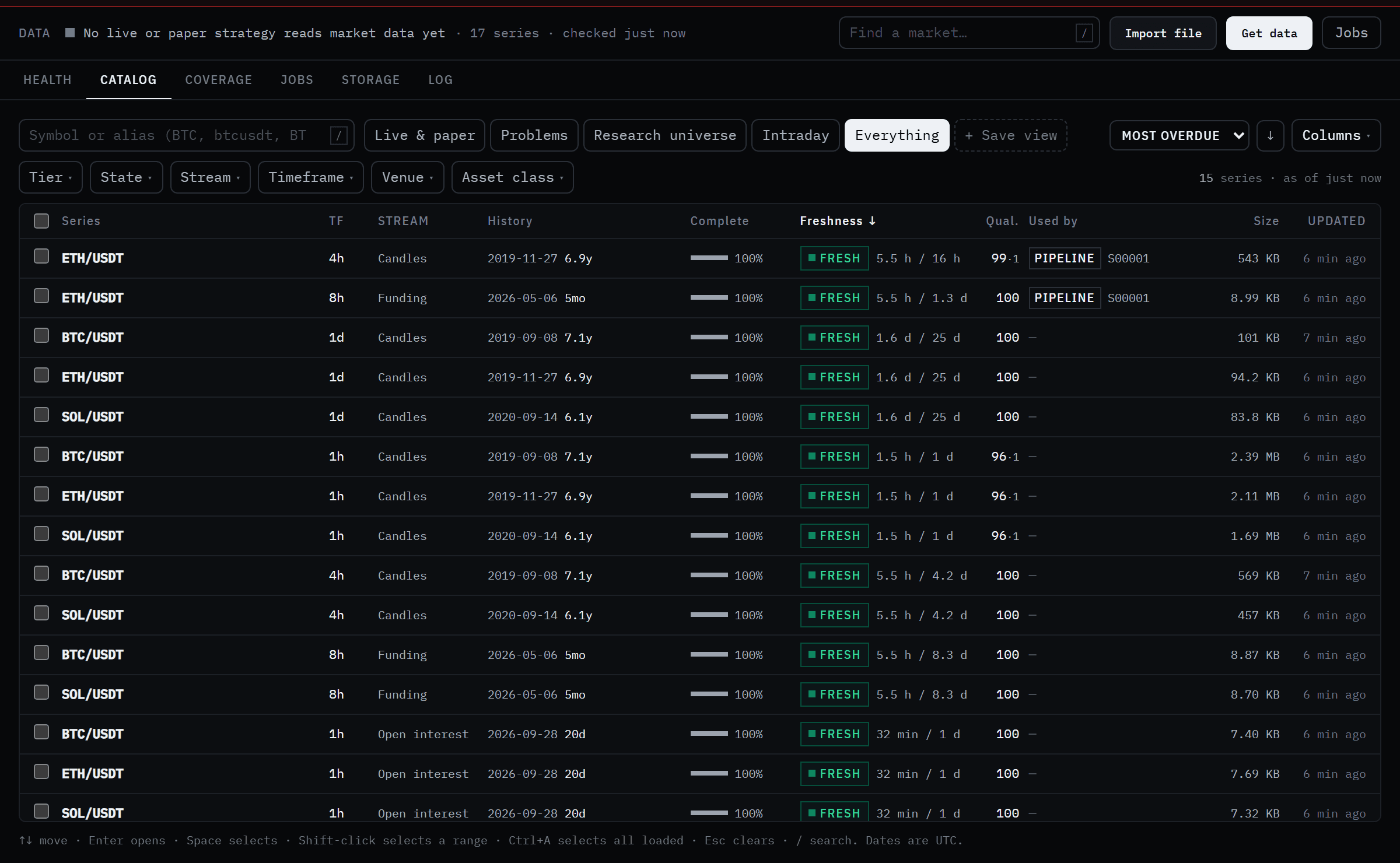 The Starter preset after its downloads finished.
Select rows for the bulk actions: Refresh, Repair gaps, Extend history (from the Binance Vision archives), Export CSV, Freeze / Unfreeze and Delete….
A series page
Click any series for its own page (/data/series/{SYMBOL}/{timeframe}): a price chart with Full history, Coverage by month, Gaps, Stored rows, Freshness & quality, Used by (the strategies that read it), the other streams for that symbol, Provenance and Recent jobs. The same actions as the Catalog are along the top.
Coverage
A grid of symbols against timeframes for one stream at a time: candles, funding, open interest, basis, implied vol, long/short, taker flow or liquidations. Colour it by Freshness or History depth. Select cells, then Refresh selected or Download missing, which shows an estimate before Start downloads.
Jobs
Every piece of data work is a job: downloads, history extensions, the universe seed, file imports, gap repairs, refreshes and collection runs. Filter by status, by who started it (you, automatic, strategy demand, the universe, the system) and by kind.
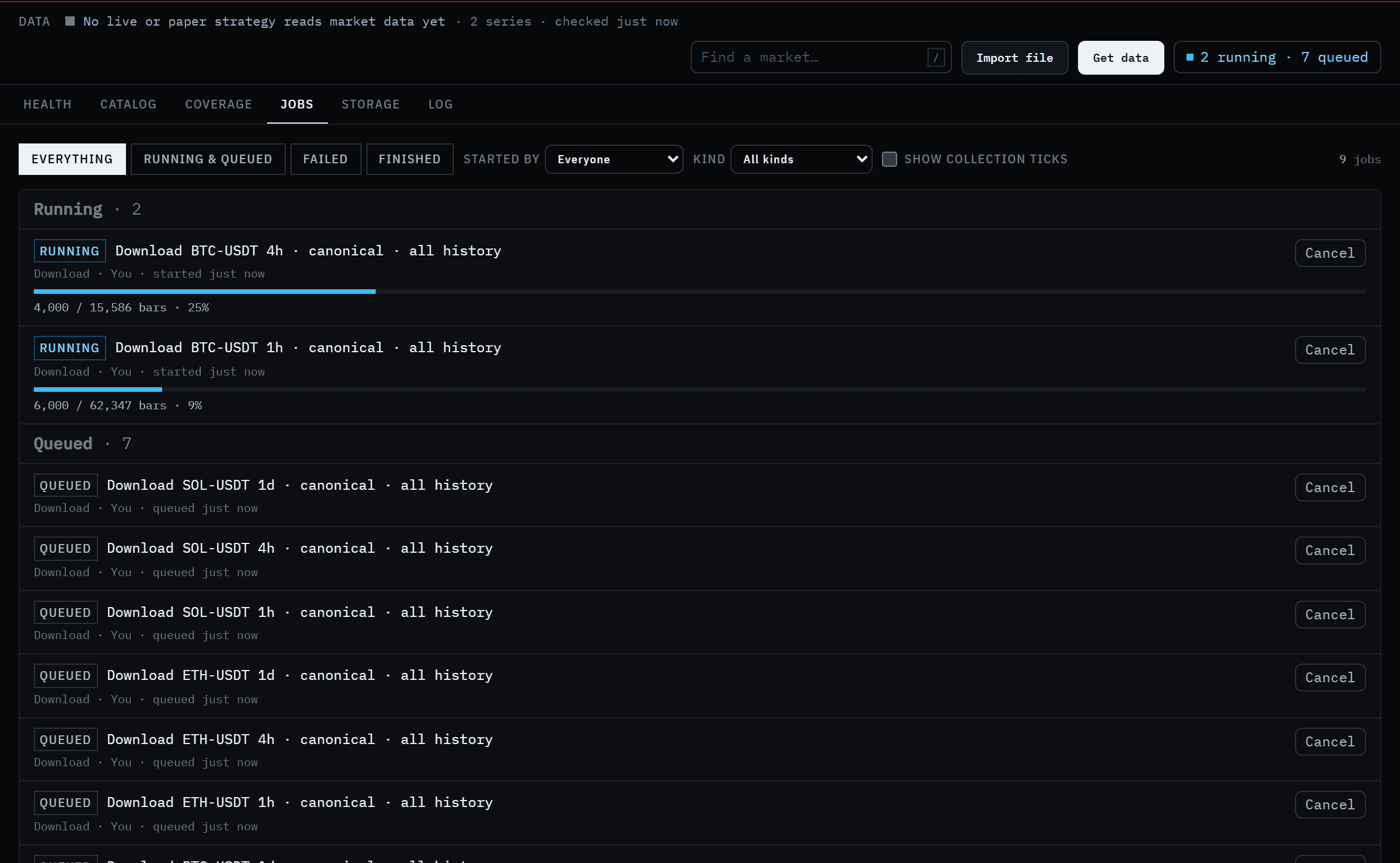 Each series downloads as its own job.
A running job shows a progress bar, bars fetched and the time left. Cancel stops one. A failed job says why in plain words, for example The venue rate-limited the download or Not enough free disk space, and offers Retry.
Storage
Tiles for the lake size, free disk, reclaimable space and the trash, then Size by stream and Largest series.
- Reclaimable space groups what can go, each marked Safe or Review first. Moving a group to the trash asks you to type a phrase such as
reclaim {kind}. - Trash holds deleted series for 7 days by default; Restore brings one back. Empty now asks you to type
empty trashand then deletes for good. - Identity audit reports symbols that look misnamed or duplicated. It only suggests; nothing is moved.
Downloads stop when free disk falls below the 5 GB floor. Both numbers are in Settings → Data → Storage.
Deleting a series safely
Delete… first checks what reads the series and shows it: rows and size, and Read by with each strategy and its stage. If a strategy or the research universe needs it, the collector will simply download it again. Deleting data that a live, paper or pipeline strategy reads needs an explicit Delete anyway, and those strategies fail their data checks until it is back. You confirm by typing the phrase shown, for example delete BTC-USDT 1h. The series goes to the trash, not straight off the disk.
Log
Your actions & incidents lists what you started and anything that went wrong; Automatic lists background work. Filter by text, level, symbol, action and date, and Export CSV.
What's stored, and where
- Closed bars only. Forming candles are dropped when written, so a backtest can never see a bar that hadn't finished.
- Sanity-checked on write. A bar with high below low, a non-positive price or negative volume is dropped before it is stored.
- Enrichment streams (funding, open interest, basis, long/short, taker flow, liquidations, implied volatility) are merged onto bars in a backtest using the nearest earlier value, so there is no lookahead. A missing stream stays missing rather than being filled with zeros. See data sources.
- On disk, data is Parquet under
data/in your Forven home (FORVEN_HOME, default~/.forven).FORVEN_DATA_DIRmoves it. Keep the two consistent: if they point at different roots, candles and enrichment streams can end up split, and Forven warns about it at startup.
Caveats
- Downloads run in the background. Counts can lag the lake by a few seconds.
- Deep history is big. The Pro preset or a large universe with minute bars can take hours and gigabytes. Start with Starter.
- Other venues don't feed backtests. A Hyperliquid or OKX download is stored separately unless Binance doesn't list the market.
- Forven is research software. Data describes the past; backtests built on it are not predictions, and nothing here is financial advice.
Related
- Get your first market data: the Starter preset, step by step
- Data sources: venues, symbol formats, streams and the API
- Health monitoring: how stale data raises alerts
- Backtesting a strategy: the next step once your data is in
The dashboard
Read Forven's home page: the banners and control strip above every page, the live status bar, the panels that appear once a strategy trades live, and what a paper-only install shows.
Strategy Creator
Build a strategy as plain-English rules or Python, watch it trade on a live preview, read in-sample against out-of-sample vitals, stress-test it, save it to your library and send it to The Forge.