The dashboard
Read Forven's home page: the banners and control strip above every page, the live status bar, the panels that appear once a strategy trades live, and what a paper-only install shows.
The Dashboard (/) is the first screen you see; there is no sign-in. It is built around one question: is real money trading safely, and does anything need me? Live trading gets the space. Paper trading, the pipeline and system health get one line each at the bottom.
On a paper-only install, which is the supported setup, the page is mostly a status bar, a Needs attention list and that footer.
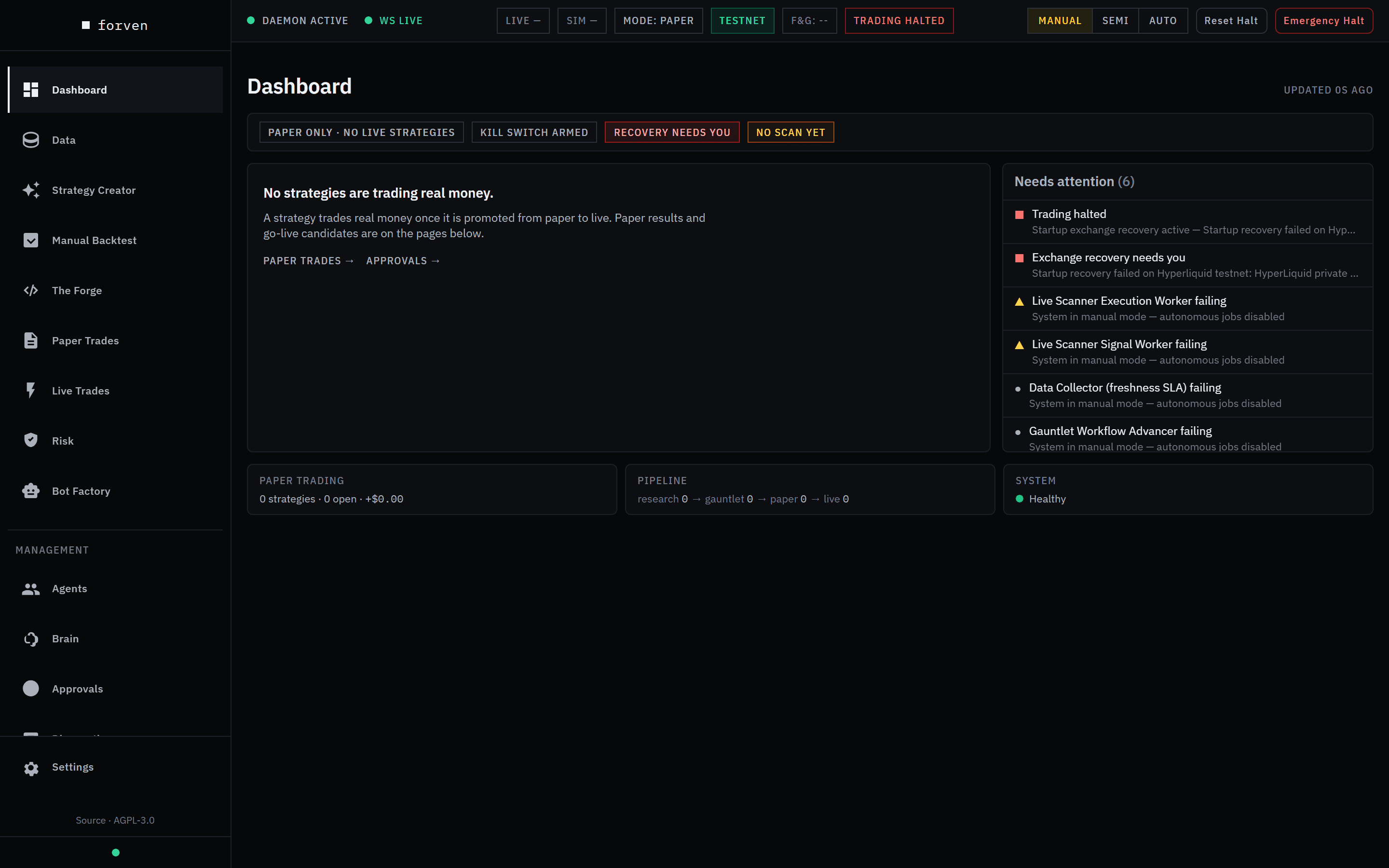 A fresh install with no exchange or AI keys. The halt is about the missing exchange key, not a fault.
First time here?
First launch & setup has an annotated copy of this screen with every chip and panel numbered and explained.
Above every page
The banners and the control strip sit above every page, not just the Dashboard.
Banners
| Banner | What it means | What to do |
|---|---|---|
| Paper + testnet only… | The risk disclaimer. | Read it, then Acknowledge. It doesn't come back on this browser. |
| Update available | Your copy is behind origin/main. | Update & restart, or Open Settings if it can't update itself. See updating. |
| Action required: No connected & selected model… (red) | An agent needs a model you haven't connected. | Open Health takes you to Agents → Setup → Providers. It stays until a provider is connected. |
| N agents use provider … with no credentials | Agents point at a provider with no key. | Dismiss it with ✕, or set models in Agents → Setup → Agent models. The banner still says "Settings → Agents"; that page has moved. |
| Your primary model is an OpenRouter free route… | Free routes hit rate limits at the current throughput. | Pick the Conserve preset in Settings → System → Throughput. |
| N interrupted runs from a previous session | Work was running when the app closed. | Review opens Diagnostics, which asks before re-running anything that places orders. Resume all re-queues everything without asking. |
| Manual mode / Semi mode (yellow) | The system mode. Auto mode shows no banner. | Switch to Semi or Switch to Auto. Each asks you to confirm. |
| Connection lost. Reconnecting… | The live WebSocket dropped. | Wait. Pages keep polling until it reconnects. |
The control strip
From left to right:
- Daemon ACTIVE / OFFLINE / SYNCING and WS LIVE / OFFLINE: whether the trading daemon and the live update feed are up.
- P&L chips: LIVE for open live positions and SIM for paper. Each links to its trading desk.
- Regime chips for BTC, ETH and SOL, for example BTC ▲ TREND UP 72%. They appear once regime data exists. Click one for the indicators behind it. See market regimes.
- Mode: MODE: PAPER while nothing trades real money. It turns into a red LIVE ×N as soon as any strategy is live or any bot is armed live, and links to Live Trades.
- Network: TESTNET or MAINNET, shown once the network is known.
- F&G: the Fear & Greed reading, or
--until sentiment data arrives. - TRADING ALLOWED / TRADING HALTED, linking to Risk, plus Kill Switch Active when it has tripped.
- The MANUAL | SEMI | AUTO mode switch, Reset Halt (only while halted) and Emergency Halt.
While trading is halted, a red line under the strip gives the reason.
What Emergency Halt does
It pauses the system and closes every open live position at market. Paper positions stay open. Trading then stays halted until you click Reset Halt. See Risk.
The page
The page refreshes over the live feed, with a 30-second fallback; the header says when it last updated.
Critical alerts
A red Critical strip at the top shows the latest critical health alert and how many there are. +N more expands the rest. Treat it as stop-and-look. The full list is in Diagnostics.
Status bar
One row of chips:
| Chip | Meaning |
|---|---|
| Paper only · no live strategies / Live · testnet · N strategies + M bots | Whether anything trades real money. |
| Trading allowed / Trading halted: … | Whether new live entries may open. |
| Kill switch armed / tripped / disarmed | Armed is the normal state: it is watching. |
| Daily-loss halt | The daily loss limit was hit. |
| Exchange ok / Breaker open: … | Hyperliquid's price, trade and account circuit breakers. |
| Reconciled X ago / Recovery running / Recovery needs you | Whether Forven's records match the exchange. |
| Scan X ago / No scan yet | When the strategy scanner last ran. |
Needs attention
Everything that needs you, worst first: a halt, a tripped kill switch, live positions without a stop, a strategy that couldn't exit, entries being refused, a failing scheduled job, approvals waiting. Each item links to the page that fixes it. When the list is empty it says ✓ Nothing needs you right now.
When a strategy trades live
These panels appear once anything is live:
- Account tiles: Live equity, Today (UTC), Drawdown, Open risk to stops and Realized net · 30d.
- Live positions: each open position with size, entry → mark, stop and unrealized P&L. Live trades → opens the desk.
- Live strategies: a scorecard of every live strategy, each marked In position, Watching, Blocked, Exit refused or Not scanned, with a Blocked entries count.
- Realized P&L: closed live trades net of fees and funding, over 7D, 30D or All.
- Recent live trades, with All trades →.
- Wallet capacity & exposure: margin in use against each wallet's limit, and net exposure per asset.
When nothing is live
The panels above are replaced by No strategies are trading real money, with links to Paper trades → and Approvals →, where paper results and go-live candidates are.
Footer
Three cards, one line each:
- Paper trading: strategies in paper, open positions and paper P&L.
- Pipeline: how many strategies sit at each stage, from research through gauntlet and paper to live.
- System: Healthy, Degraded: … or Backend unreachable.
What a fresh install shows
A new install runs in Manual mode, paper only, on testnet. With no keys added yet, expect:
- Trading halted: startup exchange recovery active — … HyperLiquid private key is required… in the strip, the status bar and Needs attention, along with Recovery needs you. Forven can't check the exchange without Hyperliquid credentials, so it reports live trading as halted. Reset Halt won't clear it while there are no credentials. It only affects orders on the exchange. Backtests, the gauntlet, the paper scanner and manual paper orders all still work.
- Needs attention items such as Live Scanner Signal Worker failing — System in manual mode — autonomous jobs disabled. These are paused jobs, not errors. They clear once you leave Manual mode and the jobs run again.
- No scan yet: no strategy scan has been reported to the dashboard yet.
- The red Action required banner until you connect an AI provider. Nothing in the first seven walkthroughs needs one.
A quick daily check
Read the strip
DAEMON ACTIVE, WS LIVE, the system mode you expect, and the mode chip. A red LIVE ×N means something is trading on the exchange.
Read the status bar and critical alerts
If trading is halted or the kill switch has tripped, go to Risk before anything else.
Clear Needs attention
Work through the list from the top. Each item opens the page that deals with it.
Glance at the footer
Check that the pipeline counts are moving and the system reads Healthy. For paper results, open Paper Trades.
Caveats
- Paper is the supported mode. Paper figures are simulated fills, not a balance. The live panels stay empty unless you take the unsupported live path.
- The dashboard summarizes; other pages own the controls. Open Risk, the trading desks or Diagnostics before you act on what you see here.
Forven is research software. Nothing on this page is a prediction or financial advice.
Related
- First launch & setup: the annotated fresh-install view
- Operations & system controls: system modes, halts and the scheduler
- Risk & safety: the limits, halts and guards the status bar summarizes
- Paper trading and Live trading: the trading desks
Philosophy
Why Forven is built the way it is: process discipline is the only durable retail edge, in-sample metrics lie, and you must kill your darlings.
Managing market data
Use the Data page to download, import, inspect and keep fresh the market data every backtest, gauntlet run and paper trade reads — Set up data presets, the Get data wizard, the Health, Catalog, Coverage, Jobs, Storage and Log tabs, freshness tiers, and safe deletes.